
The fastest way to fix the “Firmware Missing” error in Suyu Emulator is to correctly install the latest Switch firmware by placing the extracted firmware files in a dedicated folder, then using Suyu’s ‘Install Firmware’ tool—ensuring your prod.keys are also properly set up.
If you’re seeing the frustrating “Firmware Missing” message on your Suyu Switch Emulator, you’re not alone. This error means Suyu can’t find the critical system files needed for smooth Nintendo Switch emulation, and it’ll prevent most games from running at all. Thankfully, fixing it is simple once you know the steps—saving you hours of troubleshooting.
Below, you’ll find a step-by-step guide to resolving the Suyu firmware issue, written for non-technical users but with all the details needed for reliable results. We’ll cover the reasons for this error, the safe ways to get and install firmware, and essential tips for Windows and Linux setups.
What is Suyu Emulator?
The Suyu Emulator is a powerful, open-source software tool that enables users to play Nintendo Switch games on their PC by accurately mimicking the console’s environment,
delivering high-resolution graphics, customizable controls, and robust mod support for an enhanced gaming experience. To function correctly, Suyu requires specific Switch firmware, prod keys, and title keys, which must be installed to ensure compatibility with the latest games and features.
Suyu stands out as a community-driven project, constantly evolving through frequent updates that improve game performance, stability, and compatibility with a wide range of titles.
Its user-friendly interface and multi-platform support (Windows, Linux, and Android) make it accessible to both beginners and advanced users.
For the best results and to avoid errors or missing features, it’s essential to keep the Suyu firmware and keys updated, as this ensures smooth emulation and access to the latest Nintendo Switch games.
What is Suyu Firmware?
Suyu Firmware is a set of essential system files required for the Suyu Emulator, which allows users to play Nintendo Switch games on their PC, Linux, Android, macOS, or other platforms.
This firmware mimics the Nintendo Switch’s operating environment, containing critical components like the operating system, system drivers, and necessary game files to ensure compatibility and smooth gameplay.
The importance of Suyu Firmware cannot be overstated; it is the backbone of the Suyu Emulator, enabling it to function as a virtual Nintendo Switch.
Without it, users would face significant issues like game crashes or failure to load titles properly. Regular updates to the firmware are crucial for maintaining performance and ensuring that the emulator can handle the latest game releases
Why Does Suyu Emulator Show “Firmware Missing”?
The Suyu emulator requires system firmware files from the Nintendo Switch to emulate hardware functions and run most games. When these are missing, outdated, or incorrectly installed, the emulator can’t initialize—hence the error message.
Common causes:
- Missing or incorrect firmware files in the Suyu directory.
- Compatibility issues between the firmware and the emulator version.
- Incorrect “prod.keys” or missing essential decryption keys.
Fix “Firmware Missing” Error in Suyu Emulator
Here’s a clearer, step-by-step guide to fix the “Missing Firmware” error in Suyu Emulator, with extra tips to avoid common mistakes:
Step 1: Obtain the Firmware Files
- If you own a Nintendo Switch, use a tool like NXDumpTool to legally dump the firmware from your console and save it in a folder named “Suyu_Firmware” for easy access.
- If you’re stuck, (hypothetically) search online for “Switch firmware 16.0.0” (replace with your version) and always check SHA-256 checksums to verify the files’ authenticity.
Step 2: Extract the Firmware
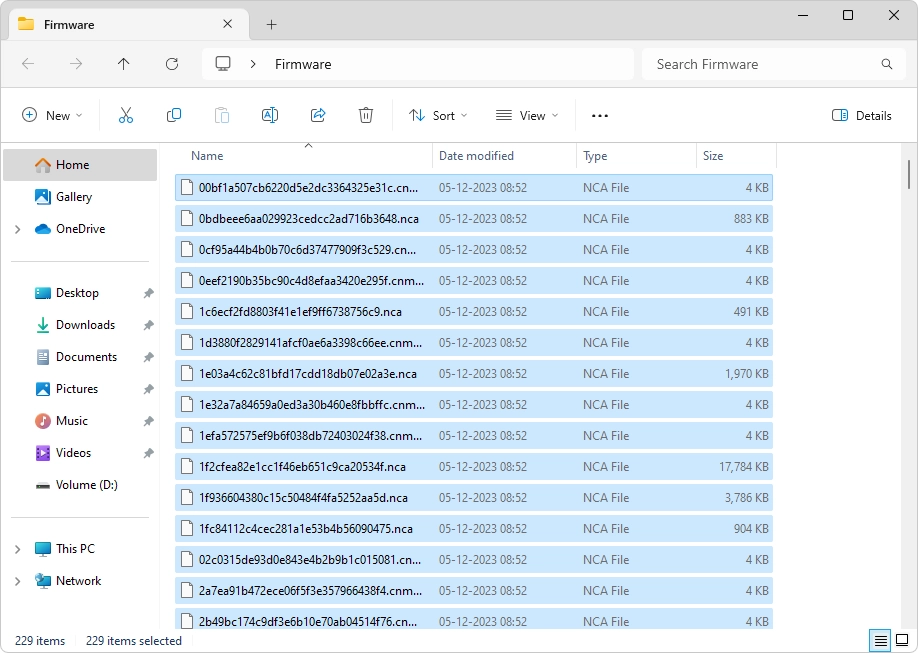
- Right-click the downloaded .zip file and select “Extract All.”
- Choose a simple location, such as Desktop/Suyu_Firmware.
- Make sure the extracted folder contains .nca files—these are essential for Suyu to work.
- Avoid leaving files inside nested folders or within the .zip; Suyu needs direct access to the .nca files.
Step 3: Launch Suyu Emulator
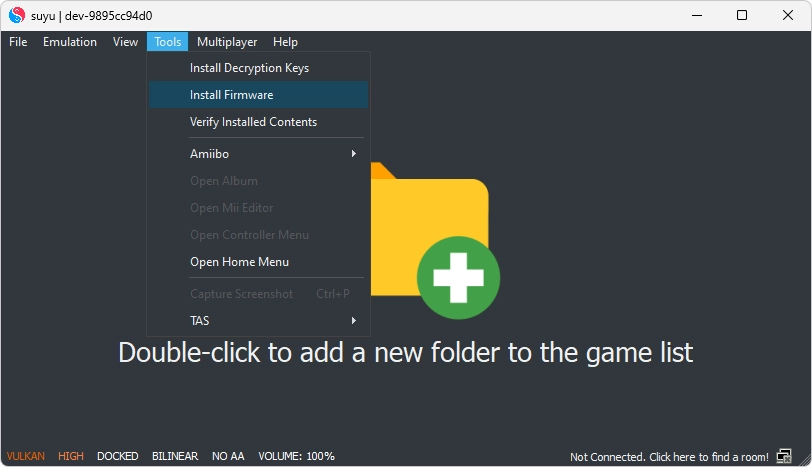
- Open the Suyu application.
- On the top toolbar, click “Tools” → “Install Firmware” → “Install Firmware from XCI/ZIP.” This method helps prevent folder selection mistakes.
Step 4: Select the Firmware Folder
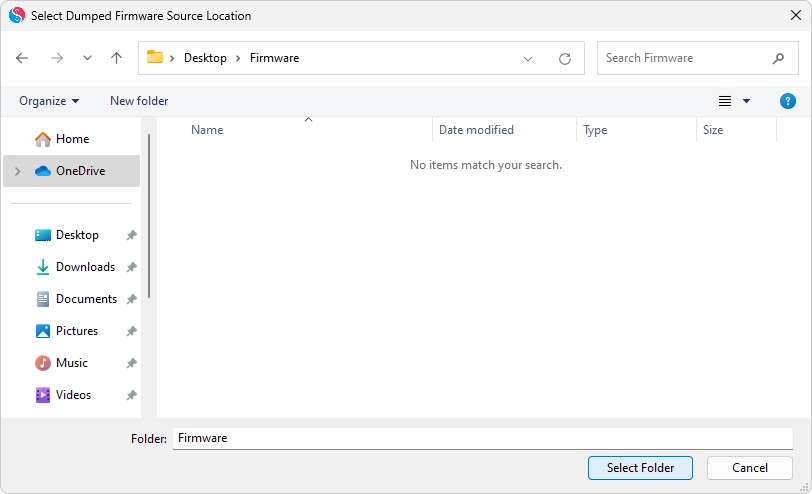
- In the file explorer, navigate to your “Suyu_Firmware” folder.
- Do not open the folder—just select it and click “Open.” Suyu will automatically detect the necessary files.
Step 5: Install and Wait
- A progress bar will appear. Wait 1–3 minutes for the process to finish.
- If successful, you’ll see a green checkmark or a “Firmware installed” message.
- If it fails, double-check that the files are unzipped and that you selected the parent folder, not individual files.
Step 6: Restart Suyu
- Fully close the emulator, including from the system tray.
- Reopen Suyu and try launching your game. The error should now be resolved.
Troubleshooting Tips
- If “Firmware not detected” still appears, redump your firmware—corrupted files are a common cause.
- Rename the firmware folder to avoid spaces or special characters (e.g., Suyu_Firmware_16).
- If your controller isn’t working, update your input settings after installing the firmware (Emulation → Configure).
By following these steps, you’ll not only fix the “Missing Firmware” error but also ensure your Suyu Emulator is set up for the best possible gaming experience
Frequently Asked Questions – Suyu Firmware Missing
What causes the firmware missing error in Suyu?
This error shows up because the emulator cannot find the system files it needs to act like a real Nintendo Switch. It usually happens if you have not installed the firmware at all, if the files are still zipped up, or if they are sitting in the wrong folder. Sometimes the emulator also needs the prod keys first, and if those are missing too, the message gets worse. In most cases, it is a simple setup step that was skipped.
Do I need to install prod keys before the firmware, or does the order not matter?
Keys always come first. The firmware will not work properly without them because the files stay locked. Put the keys in, restart Suyu, then do the firmware step. If you do it the other way around you often get another message about encryption keys missing right after. Doing keys first saves a lot of back and forth.
Does the firmware install work the same way on the Android version of Suyu?
It is very similar, but the buttons are in different places. Open the app, tap the menu, go to Settings or the install option, and select your extracted firmware folder. The “Applet Launcher grayed out” message on phones is almost always the same missing firmware problem. Snapdragon phones handle it more smoothly once the files are in place, but the steps stay straightforward.
Why do I still see “unable to locate potential firmware NCA files” even after trying to install?
The emulator is very strict about the exact folder it looks in. You have to select the folder that actually shows the .nca files when you open it, not the zip or a parent folder. A common mistake is clicking inside the wrong level. Go back, extract everything again if needed, select the right folder, and try once more. It usually clears up in under a minute once the path is correct.